TechDisc now supports Local Multiplayer! This feature allows a group of players to compete in a single round of Stroke Play from the same room using a single TechDisc setup.
All users can use local multiplayer on the courses they have access to. Unlock all available courses and holes with a TechDisc Play Subscription.
Starting a Multiplayer Stroke Play Round
On the host device – this device will connect to the TechDisc(s)
Connect your TechDisc(s) via Bluetooth to your laptop, tablet, or phone. Keep in mind you can use multiple devices simultaneously.
Navigate to the Stroke Play section in the TechDisc web app.
Click on ADD PLAYER

You will receive a 6-character Remote Login code located on the top-left of the browser

On the guest’s device(s)
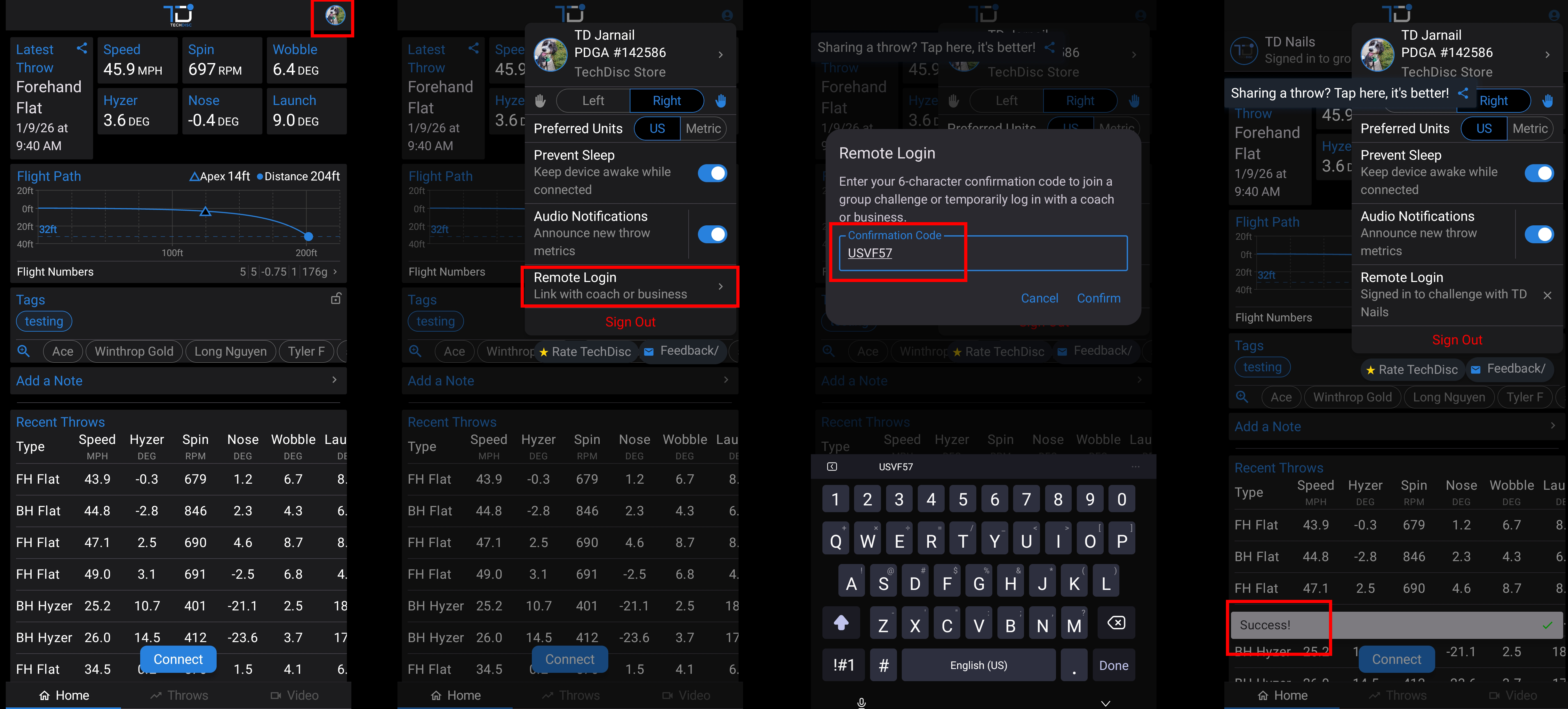
In the TechDisc app, click on your profile icon
In Remote Login, enter the 6-character code
If successful you will see “Signed in as guest of … “
Repeat these steps for all players
Under ‘Select Players’ click to select each player to add them to the card
selected players are indicated with a blue highlight
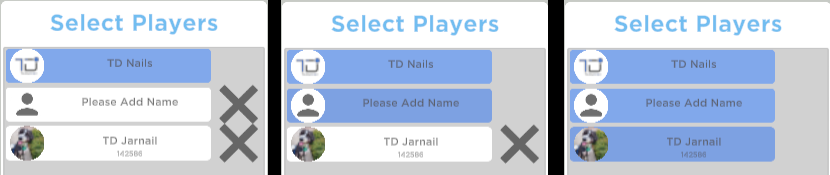
click on the X to remove players from your lobby
Select a course to play under ‘Layout Selection’
On the next screen, click on the vertical colors next to each player to choose a color
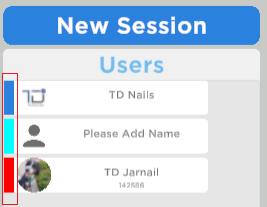
Click ‘New Session’ to begin a multiplayer Stroke Play round
Controls
To ensure a smooth experience during your multiplayer session, the simulator supports the following keyboard shortcuts for quick navigation and aiming:
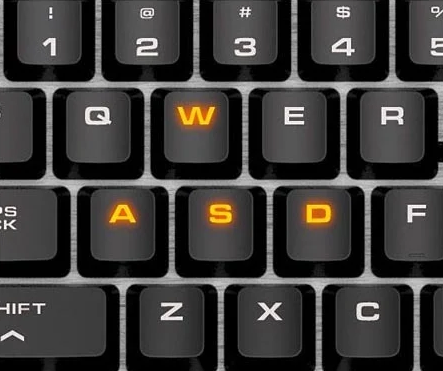
WASD Keys: Use these keyboard buttons to move the camera and adjust your aim within the simulator environment.
W - move camera up
A - move camera left
S - move camera down
D - move camera right
- Up & Down Arrow Keys: Use these keyboard buttons to cycle through your list of saved discs.
Note: using the simulator in full-screen mode allows for a better experience;
keyboard shortcuts will not work unless in full-screen
More helpful articles:
Starting Stroke Play Rounds
Was this article helpful?
That’s Great!
Thank you for your feedback
Sorry! We couldn't be helpful
Thank you for your feedback
Feedback sent
We appreciate your effort and will try to fix the article