You can pair your TechDisc sensor to the TechDisc online platform to see the metrics of your throws. The sensor is equipped with Bluetooth technology. Once paired to a device, you are able to use any extra devices signed into the same account to see the data populate in real-time. For example, you can connect to the Android app and still see the simulator on your laptop at techdisc.com.
- On iOS use the app in the app store, and on
- Android/PC/Mac use the Chrome web browser at www.techdisc.com
Android / iOS (iPhone/iPad)
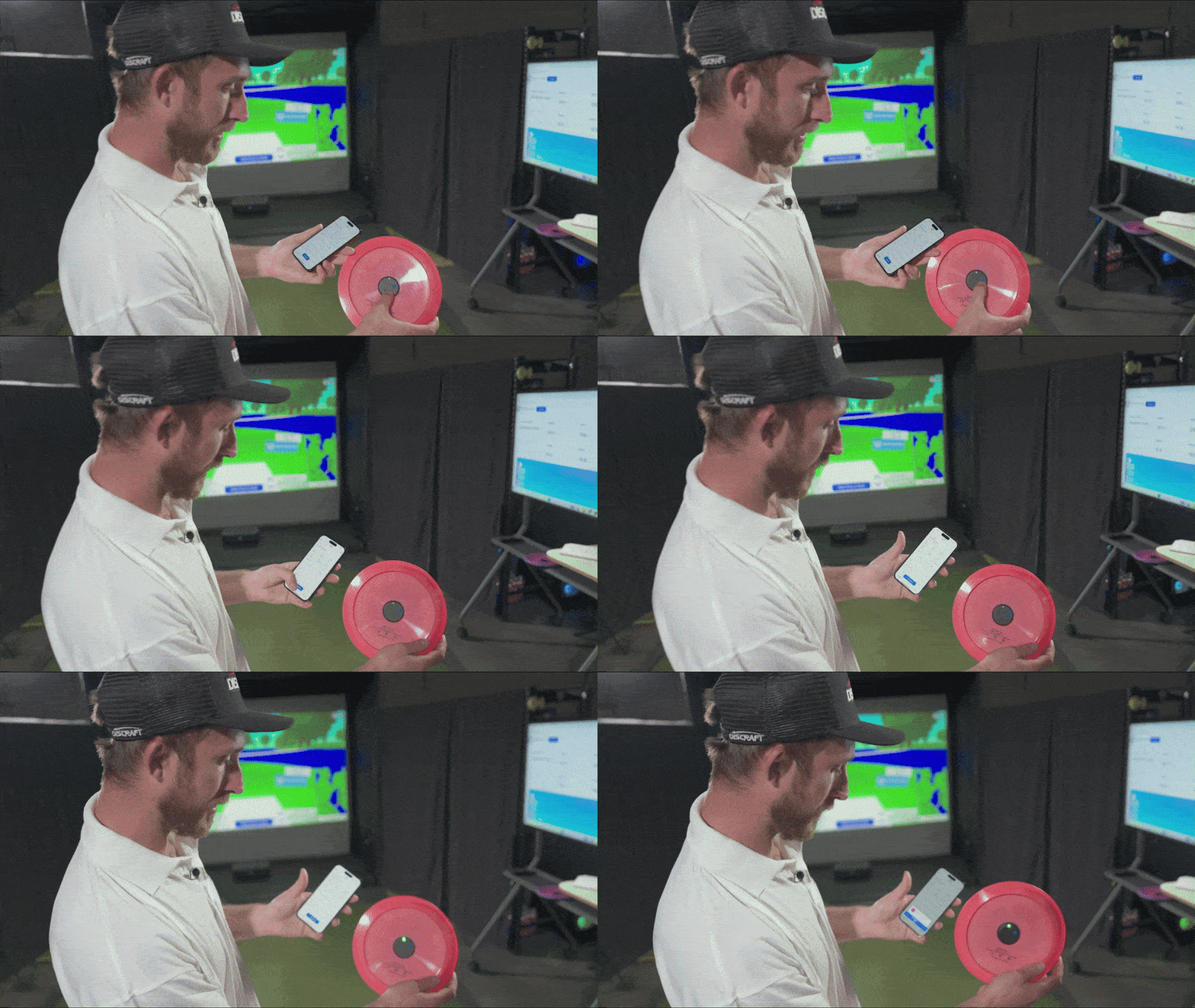
- Download the TechDisc app.
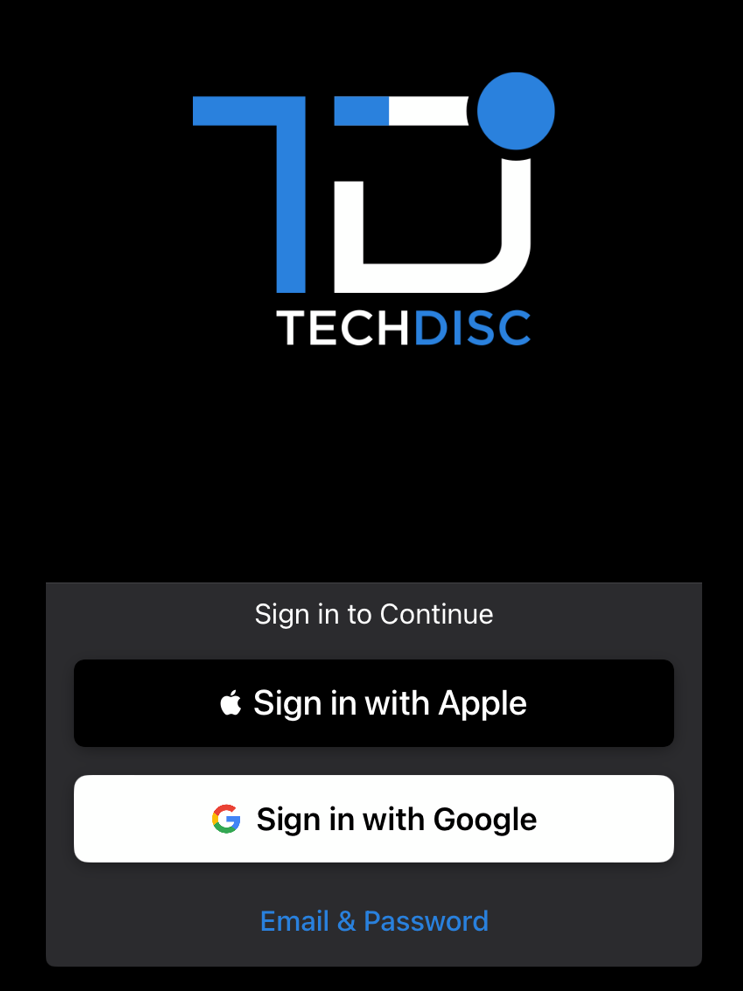
- Log in to your TechDisc account or create a new account.
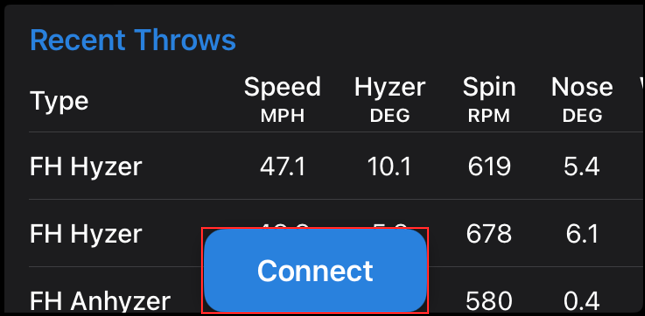
- Click "Connect" to search for your TechDisc via Bluetooth.
- The app will begin searching and connect to your TechDisc. Note: The light on the TechDisc is flashing green when trying to connect and solid green when it is connected.
-- If this is the first time connecting your TechDisc to this particular device, you will need to select the disc in the pop-up window after clicking on 'Connect'.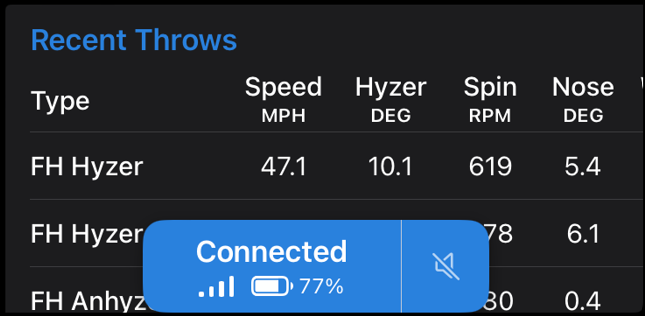
- Once you see "Connected," you are ready to start throwing!
Laptop/PC (will only work with Bluetooth)
- Go to www.techdisc.com using Chrome. Other browsers will not connect. Note: Safari has known issues working with TechDisc.
- Log in to your TechDisc account or create a new account.

- Click "Connect" to search for your TechDisc via Bluetooth.

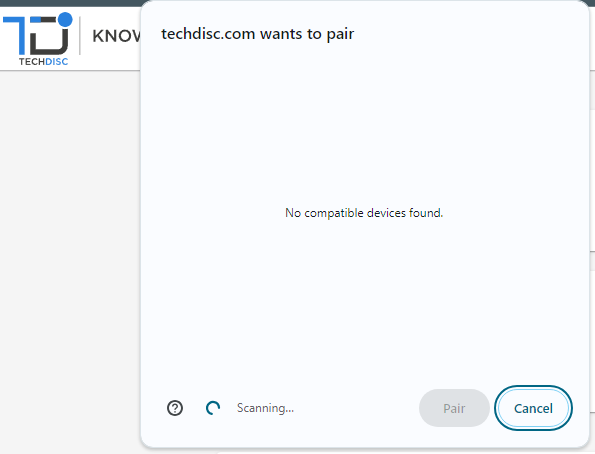
- You will see a pop-up window scanning for your TechDisc.
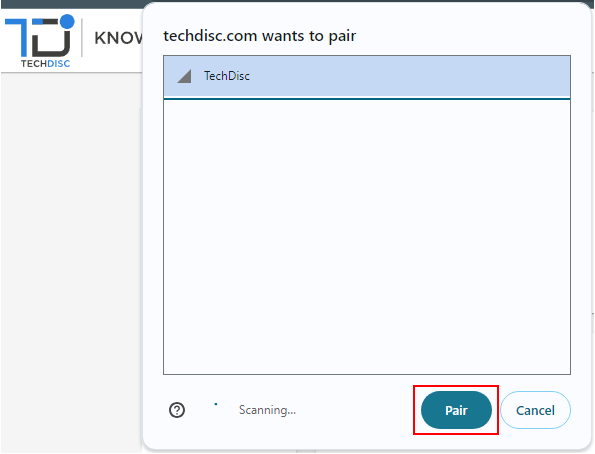
- Once your TechDisc is found select the appropriate device in the list and click "Pair."
- Note: If your TechDisc is not found, you will need to ensure the TechDisc's LED is blinking green and Bluetooth is enabled on your device.
- Note: If your TechDisc is not found, you will need to ensure the TechDisc's LED is blinking green and Bluetooth is enabled on your device.
- Once you see "Connected to TechDisc," you are ready to start throwing!

Pro Tip: Some laptops operating systems throttle their bluetooth to where the TechDisc won't connect or will produce slow upload times. See the following help article for more tips on troubleshooting bluetooth issues.
Note: Your paired device requires an active internet connection.
Was this article helpful?
That’s Great!
Thank you for your feedback
Sorry! We couldn't be helpful
Thank you for your feedback
Feedback sent
We appreciate your effort and will try to fix the article