For the best upload experience while using your TechDisc, we recommend minimizing the number of Bluetooth devices connected to your phone or tablet. Multiple Bluetooth connections can compete for bandwidth, potentially slowing down TechDisc's ability to upload data. If experiencing issues, disconnect any unnecessary Bluetooth devices from your phone, tablet, or computer.
Computers and laptops can have issues connecting due to their Bluetooth due to the operating system throttling the native Bluetooth. If you are having issues, we recommend using an external USB Bluetooth dongle similar to this one.
- disable the native Bluetooth adapter in Device Manager
- enable the USB Bluetooth adapter
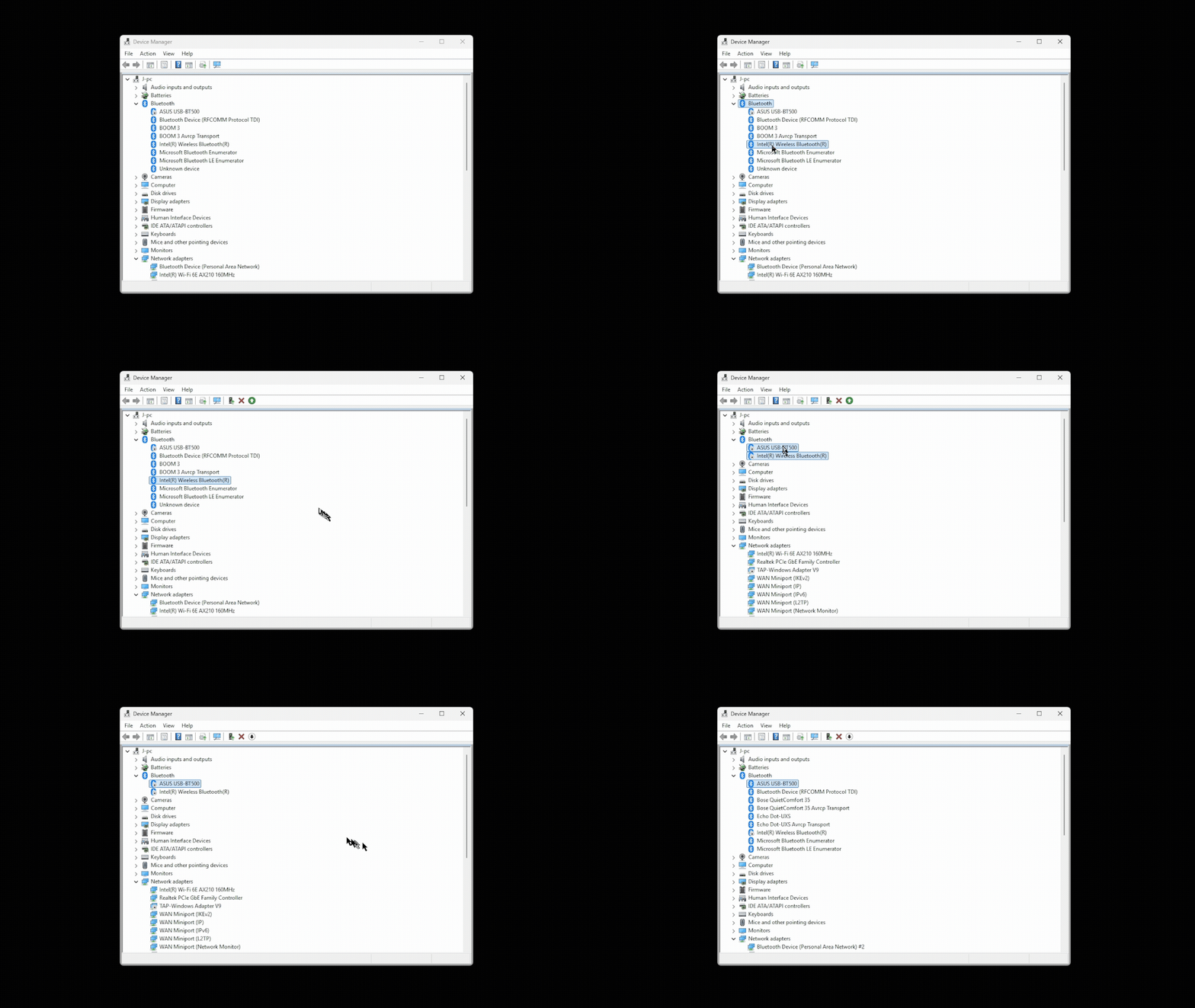
Alternatively, connect to a phone or tablet via the TechDisc app. Generally, phones and tablets have faster Bluetooth than laptop/desktop computers. As long as you are logged into the same TechDisc account, the throws will be recorded and show on every device that is connected to that account.
For mobile devices, ensure the device permissions allow Bluetooth (sometimes listed as Location or Nearby Devices).
If you're still having trouble connecting your TechDisc or other issues with your upload speeds, email help@techdisc.com. Please include the device and app (web, android, or iOS) you're using so we can assist you further.
Was this article helpful?
That’s Great!
Thank you for your feedback
Sorry! We couldn't be helpful
Thank you for your feedback
Feedback sent
We appreciate your effort and will try to fix the article